File Upload
Overview
The ADMS upload feature allows users to import network data into the system by uploading a ZIP file containing multiple CSV files.
Once uploaded, the data is automatically processed and visualized on the map with different layers.
Prerequisites
- ADMS must be enabled for the project
- You must have access to the ADMS module
- The file must be a ZIP archive containing valid CSV files
How to Upload Files in ADMS
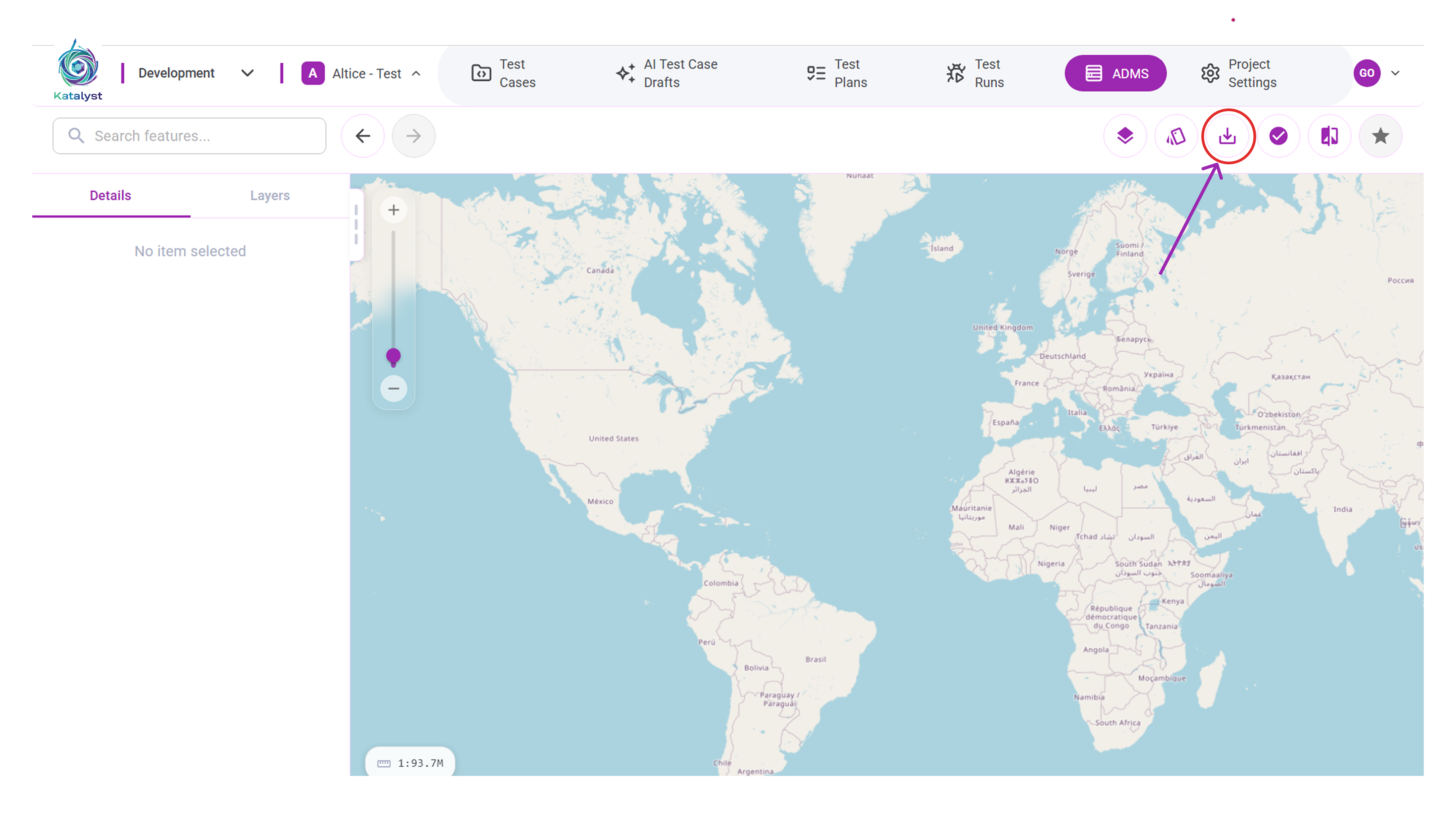
Step 1: Open the Upload Option
- Navigate to the ADMS module from the top navigation bar
- Click the Upload (⬆) icon in the top-right corner
Step 2: Select and Confirm the File
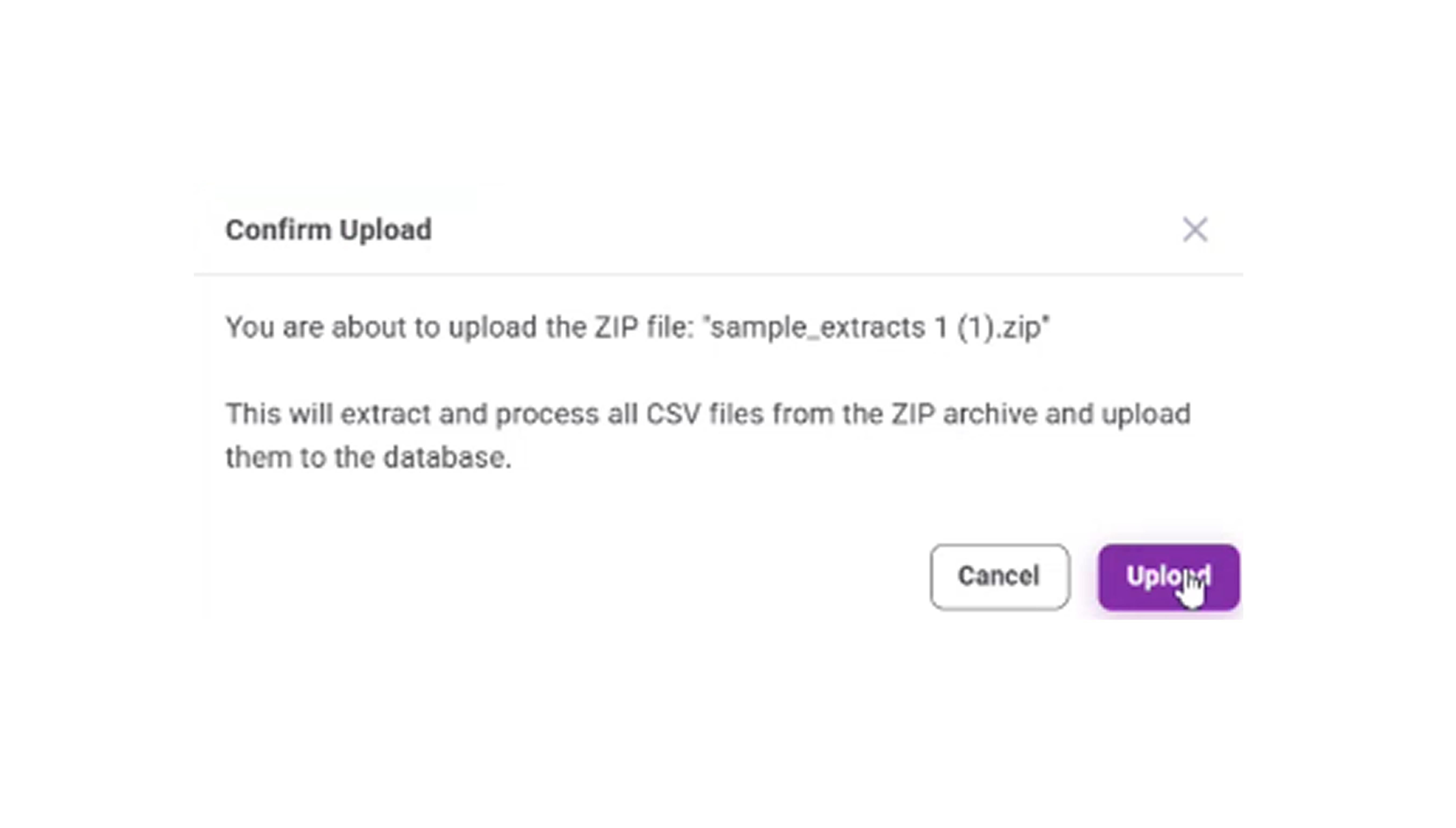
- Choose the ZIP file from your system
- A Confirm Upload dialog appears
- Review the file name and details
- Click Upload to proceed, or Cancel to stop
Step 3: Wait for Processing
- The system extracts all CSV files from the ZIP
- Data is validated and uploaded to the database
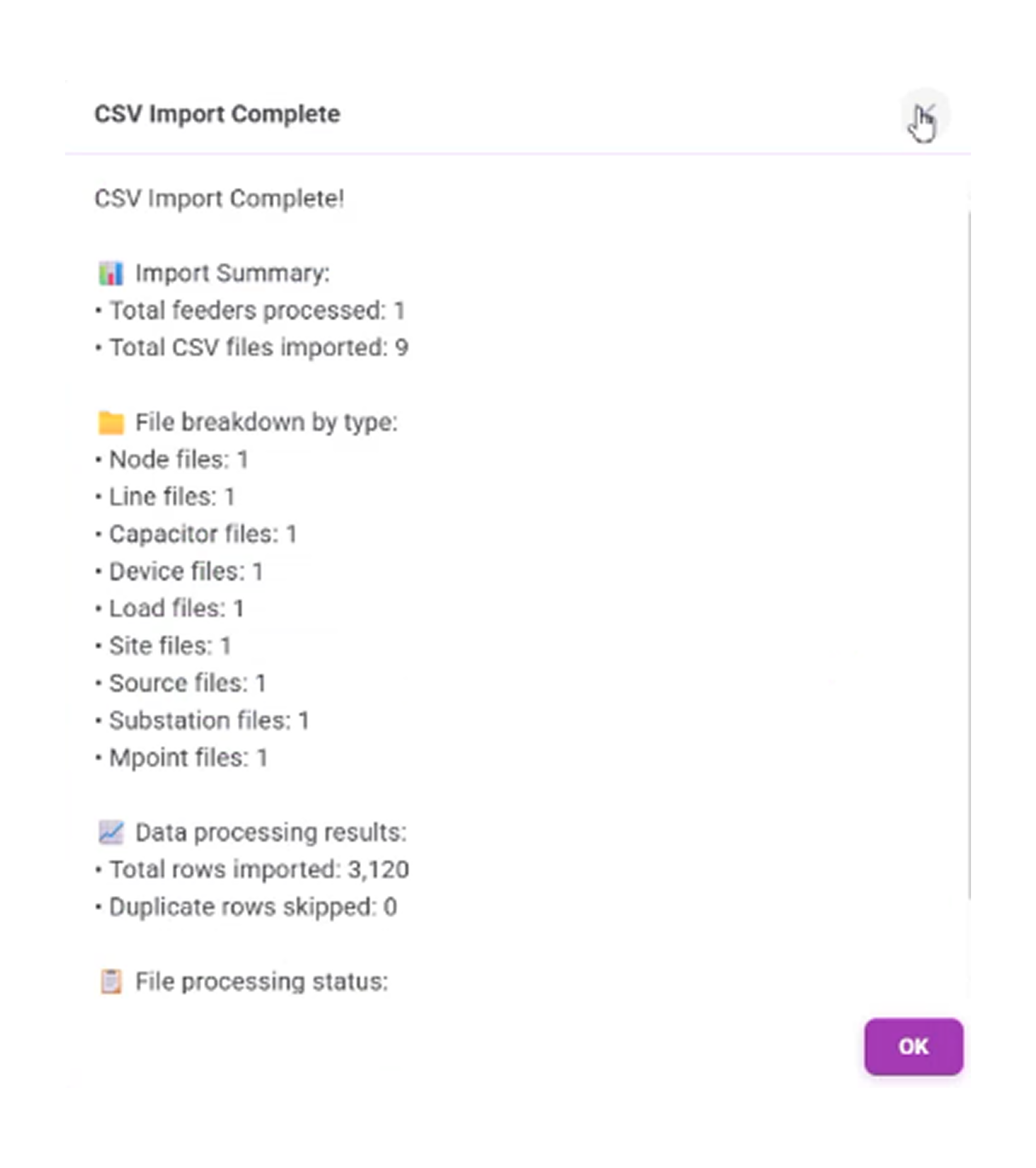
When processing is complete, a CSV Import Complete message is displayed with:
- Total feeders processed
- Total CSV files imported
- File type breakdown
- Data processing results
- Click OK to continue.
Step 4: View the Imported Data
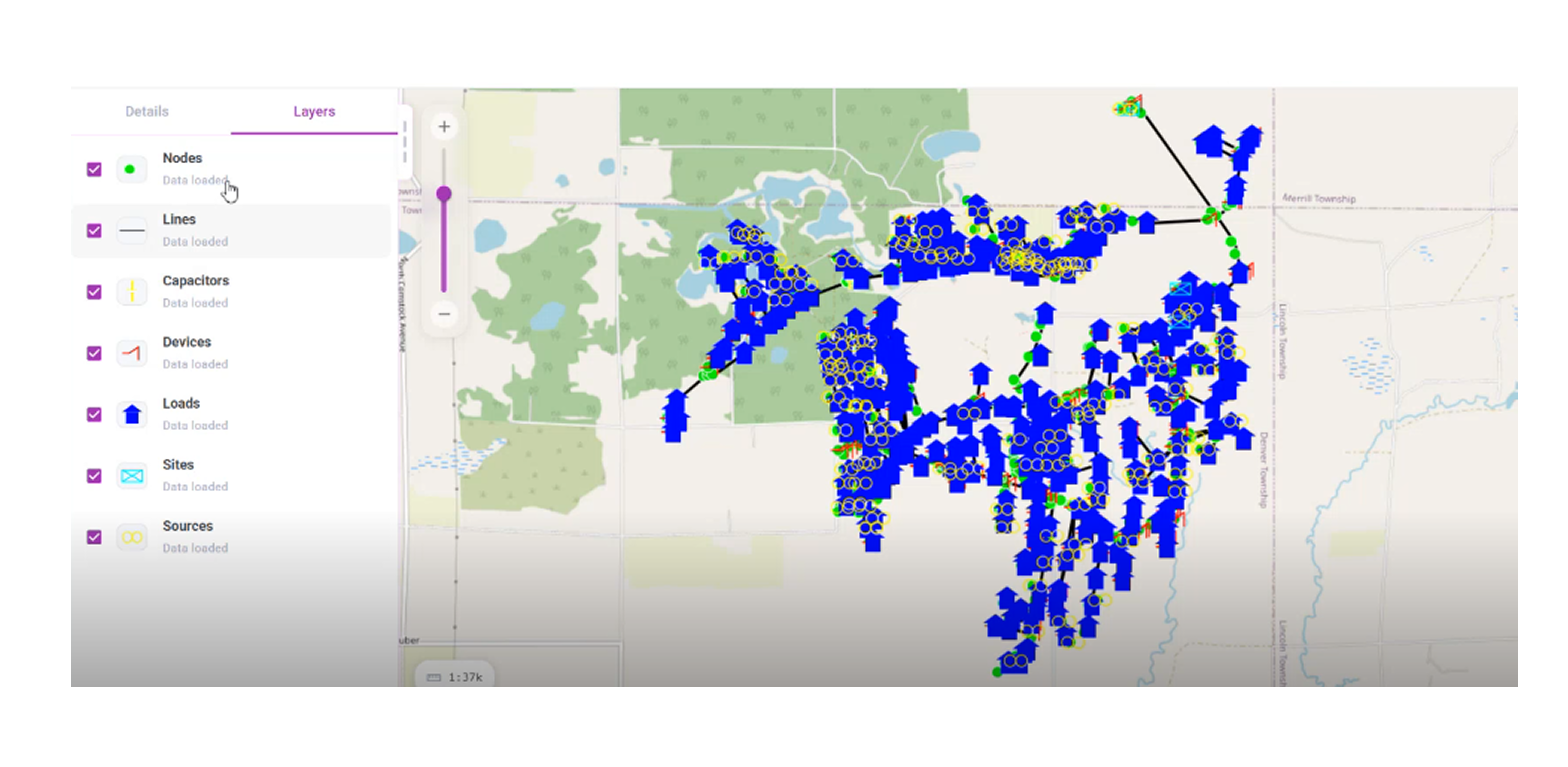
- The imported network is displayed on the map
- Use the Layers panel to show or hide:
- Nodes
- Lines
- Capacitors
- Devices
- Loads
- Sites
- Sources
Result
- Your network data is successfully uploaded
- All components are visualized on the map
- You can interact with different layers for analysis
Notes
- Only ZIP files containing valid CSV files are supported
- Large files may take longer to process
- Ensure all required CSV files are included in the ZIP before uploading