Add Project
Projects in Katalyst act as dedicated workspaces where teams can create, manage, and execute test cases, test plans, and test runs.
This section explains how to create a new project.
1. Navigating to Add Project
To create a new project:
- From the left sidebar, click Add Project.
- You will be redirected to the Add Project form.
2. Project Details
The Add Project page contains the following fields:
Name *
Enter the name of the project.
This field is required.
Examples:
- New Widget
- Intranet System
- Payroll Software
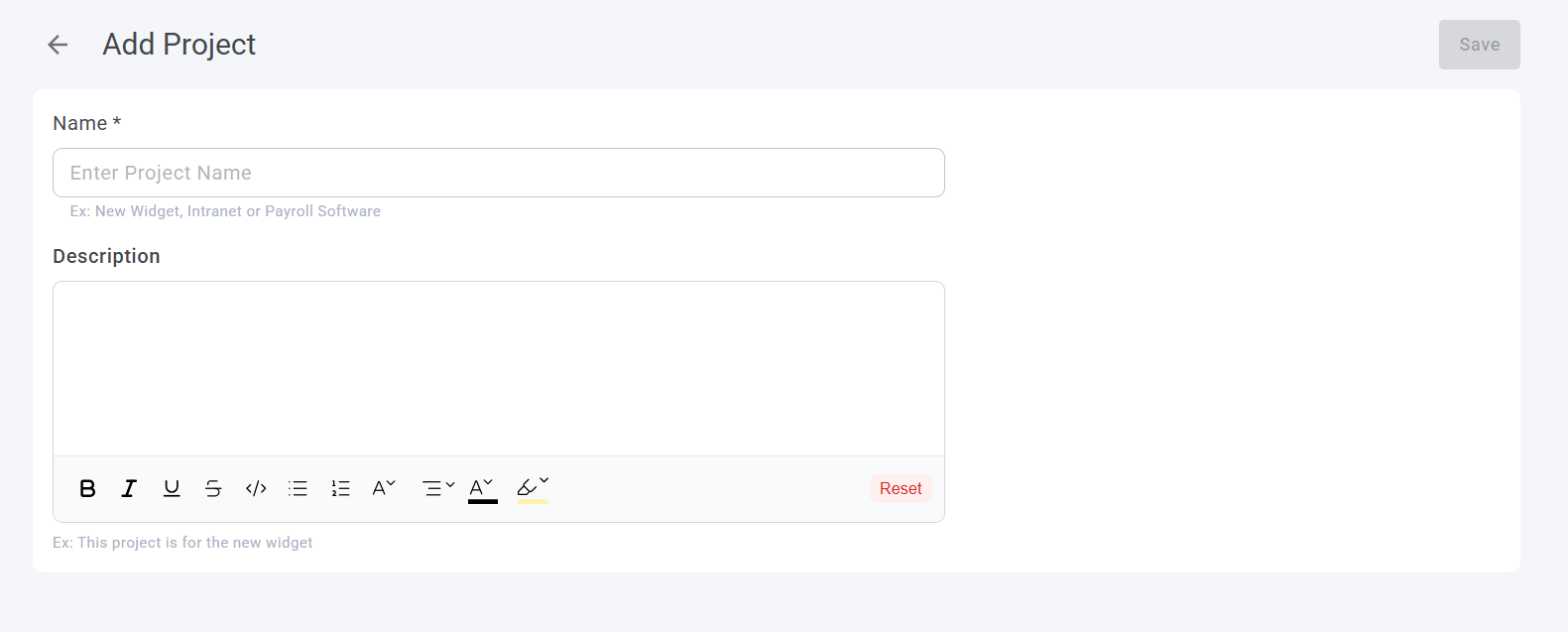
Description
Provide a brief description of the project. This helps team members understand the project’s purpose and scope.
The rich text editor supports:
- Bold, Italic, and Underline formatting
- Bulleted and numbered lists
- Code formatting
- Font color and background color
- Reset option to clear formatting
Example:
This project is created to manage test cases and executions for the new widget module.
3. Saving the Project
After entering the required details:
- Click Save in the top-right corner.
- If the form is valid:
- The project is created successfully.
- You are redirected to the project workspace.
If required fields are missing, an error message is displayed.
4. Project Naming Guidelines
To keep projects easy to identify: